New Ways to Communicate through Visual Design!
Art Tools with Intelligence
Artificial intelligence tools are reshaping how students and teachers create, design, interpret, and communicate visually. AI tools expand opportunities beyond drawing and painting to include visual composition, layout, infographics, diagrams, modeling, animation, and visual explanation — all while supporting diverse learners through Universal Design for Learning and assistive technology.
AI is not just a new way to make images — it is a new way to think with visuals, explore concepts, represent ideas, and express understanding. AI can support learners who struggle with traditional art production, those who need scaffolded visual expression, and those who want to explore creative visual thinking at deeper levels.

AI Image Generation Systems
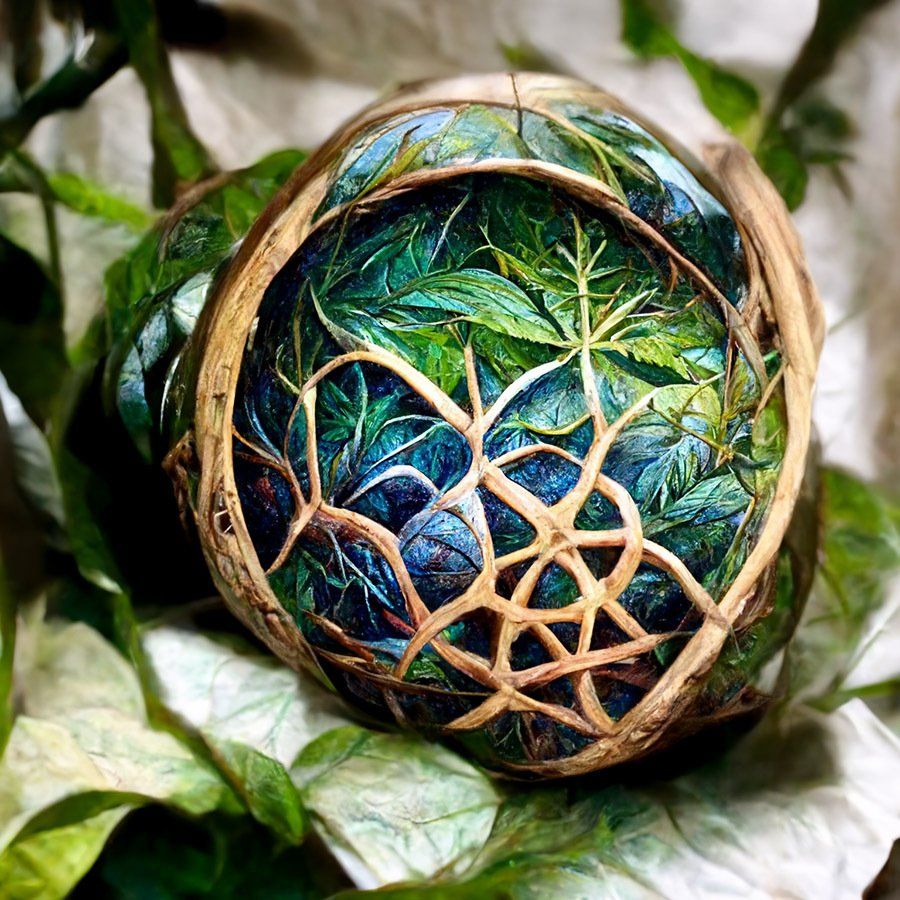
Prompt-Based Image Generation - Natural-language image creation for illustration, storytelling, concept art, and visual exploration.
- ChatGPT |
Claude |
Gemini |
Copilot - Conversational AI systems that generate images and visual content directly from natural-language prompts are useful for quick illustration, visual ideation, storyboarding, and creative exploration across subjects.
- Adobe Firefly - Generate images, textures, and design elements inside Adobe’s ecosystem, ideal for illustration, visual ideation, and classroom-safe creative projects.
- Midjourney - High-quality artistic and conceptual image generation, excellent for visual storytelling, mood boards, and advanced creative exploration in secondary classrooms.
- Leonardo.ai - Powerful image and concept art generator with strong control over style and refinement, useful for design projects, game art, and visual experimentation.
- Bing Image Creator | Copilot - Accessible image generation inside Microsoft Copilot and Bing, convenient for quick classroom visuals, creative prompts, and instructional graphics.
Interactive Drawing & Sketch-to-Image Tools - Drawing-based systems that combine sketching with AI interpretation.
- AutoDraw - Turns simple sketches into clean icons and drawings, ideal for early learners, motor planning, symbol creation, and quick visual communication.
- Leonardo Live Canvas - Real-time sketch-to-image environment that updates images as students draw and refine prompts, excellent for design ideation and visual planning.
Image Editing & Generative Enhancement - Modify, extend, and refine existing images using AI.
- Adobe Photoshop (Generative Fill) - Insert, remove, or replace objects, expand backgrounds, and restore images, supporting photo editing, composition, and visual storytelling projects.
- Canva (Magic Edit, Magic Expand, Background Remover) - Classroom-friendly image editing tools for posters, presentations, infographics, and creative projects with simple controls.
- Clipdrop - Web-based tools for background removal, cleanup, lighting enhancement, and compositing are useful for preparing images for instructional materials and student projects.
Layout, Composition & Design Systems - Design platforms for visual communication, not just illustration.
- Canva - Create posters, presentations, infographics, diagrams, and visual explanations with built-in AI support, ideal for project-based learning and instructional publishing.
- Microsoft Designer - AI-assisted layout and graphic design tool integrated with Microsoft accounts, useful for classroom posters, social graphics, and quick visual communication.
- Adobe Express - Web-based design platform for layouts, presentations, and instructional visuals with AI assistance, supporting creative publishing and multimedia projects.
Vector, Icons & Illustration Systems - Clean, scalable graphics for diagrams, icons, and instructional visuals.
- Recraft - Generate vector illustrations, icons, diagrams, and clean graphics, excellent for STEM visuals, infographics, labeling systems, and technical communication.
- Canva Icons & Illustration Generator - Built-in tools for creating icons, diagrams, and simple illustrations for presentations, infographics, and instructional materials.
3D, Modeling & Spatial Design - AI-assisted 3D creation and spatial visualization.
- Monster Mash - Create simple 3D images from sketching 2D objects on the screen.
- Meshy - Text-to-3D and image-to-3D model creation for science models, engineering concepts, anatomy visuals, and interactive design projects.
- Spline AI - Interactive 3D design and animation environment with AI support, useful for spatial reasoning, simulations, and interactive visual storytelling.
Video & Motion Generation - AI tools for creating and transforming video and animation.
- Nano Banana - Text-to-video and image-to-video creation for short instructional clips, animations, and visual narratives, useful for science explanations, storytelling, and presentations.
- Runway - Video generation and editing platform for animations, visual effects, and instructional media, supporting multimedia storytelling and visual explanations.
- Adobe Firefly Video - AI-assisted video creation and editing inside Adobe tools, useful for motion graphics, explainer videos, and creative classroom projects.
Integrated Creative Platforms - Full creative ecosystems for cross-media production.
- Canva Education - All-in-one environment for images, layouts, infographics, presentations, and publishing with classroom licensing and collaboration tools.
- Adobe Creative Cloud - Professional creative suite including Photoshop, Illustrator, Express, Firefly, and After Effects, supporting advanced design, illustration, and multimedia production.
Educational & Assistive Visual Tools - Tools especially valuable for accessibility, planning, and alternative expression.
- AutoDraw - Supports early drawing, motor access, symbol creation, and visual expression for students with fine-motor or planning challenges.
- Canva Whiteboards & Visual Organizers - Supports visual planning, sequencing, concept mapping, and executive functioning through collaborative visual layouts.
- NotebookLM - Transform information into infographics and handouts.
- Symbol and Diagram Tools in Canva - Support AAC visuals, labeling systems, instructional diagrams, and accessible visual communication.
Instructional Ideas for Visual Arts with AI
AI tools can be integrated into visual arts instruction in ways that enrich process, deepen understanding, and support student expression. Here are instructional pathways grounded in visual thinking and creativity:
Levels of Instruction
AI tools can be integrated at different levels of instruction:
Entry-Level Exploration
Begin with simple prompts and interpretation discussions.
Use AI tools to support students who struggle with fine motor skills.
Skill Development
Build visual vocabularies through prompt refinement.
Compare AI iterations to analyze artistic choices.
Creative Expression & Portfolio Development
Have students combine AI creations with traditional media for mixed-media portfolios.
Support reflective writing (artist statements) grounded in visual intention.
Visual Brainstorming
AI can help students brainstorm concepts, explore styles, and generate visual variations.
Classroom Uses
Students create multiple visual concepts from one description prompt to compare styles or moods.
Use AI-generated imagery as a springboard for sketching, refining ideas, or classroom critique.
Explore historical art movements by generating AI interpretations of styles (Impressionism, Surrealism, etc.).
Composition & Design Exploration
AI tools let students experiment with layout, composition, scale, color balance, and visual hierarchy.
Classroom Uses
Have students generate several composition variations to discuss balance and focal point.
Create infographics that show relationships, sequences, or processes across subjects.
Use AI outputs to analyze how design choices (placement, contrast, alignment) affect communication.
Cross Content Concept Visualization
AI can support visual representations that explain complex concepts from other content areas.
Classroom Uses
Science diagrams (e.g., water cycle, life cycles, ecosystems).
Social studies visuals (timelines, maps, cultural comparisons).
Math visuals (data graphs, geometric patterns, spatial models).
Accessibility, Scaffolds & UDL Supports
AI tools function as assistive technology by reducing barriers to creation while preserving meaning and intent.
Classroom Uses
Students with motor challenges can create visual work using text prompts or minimal input.
Visual planners, storyboards, and AI-generated reference images support sequencing and organization for students with specific learning disabilities.
Combine student sketches with AI prompts to visually scaffold concept development.
Visual Literacy, Prompt Writing, and Creative Intention
Creating with AI involves a new kind of literacy: description prompts — the language used to guide visual generation. Writing clear, specific prompts is a key skill, much like learning composition or sketching fundamentals. Prompts help students articulate creative intention, interpret meaning, and refine their visual choices. Prompt writing itself can be an instructional activity grounded in vocabulary, organization, and artistic intent.
For example, a basic prompt such as “a bright meadow with rolling hills and cloud shadows” can become a starting point for discussing composition, color, and spatial relationships. Prompt guides can be developed collaboratively to support vocabulary, intent, interpretation, and response, and can be shared in multiple formats (digital, large print, braille, communication boards, etc.) to ensure accessibility for all students.
Assistive Technology & Accessibility Strategies
Digital and AI visual tools offer new ways to support learners who struggle with traditional media. AI generation allows students who may have limited drawing skills or motor control to participate fully in visual arts activities.
Assistive Access Tools
Switch systems, adapted keyboards, joysticks, eye-gaze control, and touch alternatives support physical access.
Custom prompt overlays (vocabulary and visual language phrases) on communication devices help students express creative intent.
Prompt categories can be simplified or expanded depending on student proficiency, and complexity can grow with confidence and skill.
Prompt writing supports common communication goals: creative intention, interpretation, and response. It aligns with visual analysis, artist statements, and reflection activities, making prompts meaningful both as a creative input and as a learning scaffold.
Assistive Technology Resources
For more ideas on computer accessibility tools and communication systems, check out the Assistive Technology Image Gallery.
To obtain assistive technologies to try out with a student, work with an Assistive Technology Professional in your district who has access to the AT & UDL Loan Library.
Using AI as a Learning Partner: The Feynman Exploration Technique
Before asking for answers, try using AI as a learning partner to explore a new topic. This approach is based on the Feynman Technique, a learning strategy that helps you understand ideas by explaining them in your own words, finding what you don’t yet understand, and refining your thinking.
Begin by asking the AI to guide you through the topic rather than explain it to you. First, explain what you already know about the concept in simple language. The AI can then help you identify gaps in your understanding, point out unclear ideas, and suggest analogies or examples to make difficult parts easier to grasp. As you revise your explanation, your understanding becomes clearer and more complete.
This process works well individually or in small groups. Students can compare explanations, discuss gaps, test ideas, and refine their thinking before meeting with the teacher. By the time you ask questions in class, you are no longer starting from zero. You arrive with ideas, vocabulary, and specific points of confusion already identified.
Student Learning Prompt Template – Explore Before You Ask
Use this prompt when you are starting a new topic and want to understand it better before asking your teacher.
Student Prompt (copy everything between the quotes, inserting your topic)
"I am learning about [insert topic].
First, I will explain what I already know about this topic in simple language. After I explain, please:
- Point out any gaps or unclear parts in my explanation
- Ask me questions that help me think more deeply
- Give me simple analogies or examples for confusing ideas
- Help me refine my explanation until I can clearly teach it back
Do not give me a full explanation at the start. Guide me step by step and help me improve my understanding."
How Students Use This in Class
- Write or say what you already know about the topic
- Let the AI point out gaps and ask guiding questions
- Revise your explanation and try again
- Repeat until your explanation becomes clear and confident
- Bring your questions and refined explanation to your teacher
Using the Feynman Exploration Technique to Analyze Learning Goals
Before exploring new content, students can use the Feynman Exploration Technique to first analyze and understand the expectations of the learning goals themselves. Rather than beginning with definitions or explanations, students start by explaining what they think the standard or learning target is asking them to know and be able to do. Through guided questioning and refinement, unclear language becomes clearer, key skills emerge, and expectations become explicit and meaningful.
This process helps students move beyond reading a standard to truly understanding it. By identifying gaps, clarifying vocabulary, and refining their interpretation, students enter instruction with a clearer sense of purpose and direction. Only after the learning goals are understood do students apply the same technique to explore the content, concepts, and skills aligned to those goals.
Used individually or in small groups, this approach supports inquiry, metacognition, and intentional learning. Students arrive at instruction better prepared, with shared language, emerging questions, and a deeper awareness of what they are working toward and why.
Student Prompt Template – Analyze a Learning Goal First
Use this prompt when you are starting a new unit, lesson, or standard.
Student Prompt (copy everything between the quotes, inserting your standard and/or benchmarks)
"I am working on this learning goal or standard: [paste the standard or learning target here]
First, I will explain in my own words what I think this learning goal means and what I am expected to learn. After I explain, please:
- Point out any parts of the goal that are unclear or confusing
- Help me identify the key skills and ideas I need to learn
- Ask me questions that help me think more carefully about what this goal expects
- Help me refine my explanation until I clearly understand what I am working toward
Do not explain the content yet. Help me understand the learning goal first."
Next Steps
Once the student understands the learning goal, they can use the Feynmanb Exploration Technique to help achieve the academic objective.
Why Use Artificial Intelligence Tools?
Artificial intelligence introduces both opportunity and disruption, much like earlier technologies that reshaped learning and daily life. Change can feel unsettling, but history shows that transformative tools often become essential once their purpose becomes clear. AI represents not simply a new medium, but a shift in how we interact with creativity, information, and learning.
AI changes the scale of familiar practices. In the visual arts, students have always studied and learned from existing works by observing, copying, and analyzing style, color, and composition. AI now allows this exploration to happen instantly and broadly, expanding access while preserving the core learning process.
AI also marks an important evolution in assistive and performance technology. Supports have progressed from physical tools to digital aids and now to intelligent systems that work alongside learners. At every stage, the goal remains the same: reduce barriers, increase access, and strengthen performance.
We have always learned by sharing intelligence. When students, teachers, and supportive technologies work together, opportunities expand, and all students learn! The future is not about replacing human intelligence, but about extending it thoughtfully and for meaningful impact.